
Examples
AI jewelry photo examples, before and after
The before and after pairs and video clips from the Hues AI homepage, collected on one page and shown at a size you can inspect.
Each pair puts the original on the left and the Hues AI output on the right: a background swap, a color correction, a sketch turned into a render, a bracelet virtual try-on and a retouch. The video clips follow. Every example links to the use-case page that covers the same kind of work, so you can read how that part of the studio works.
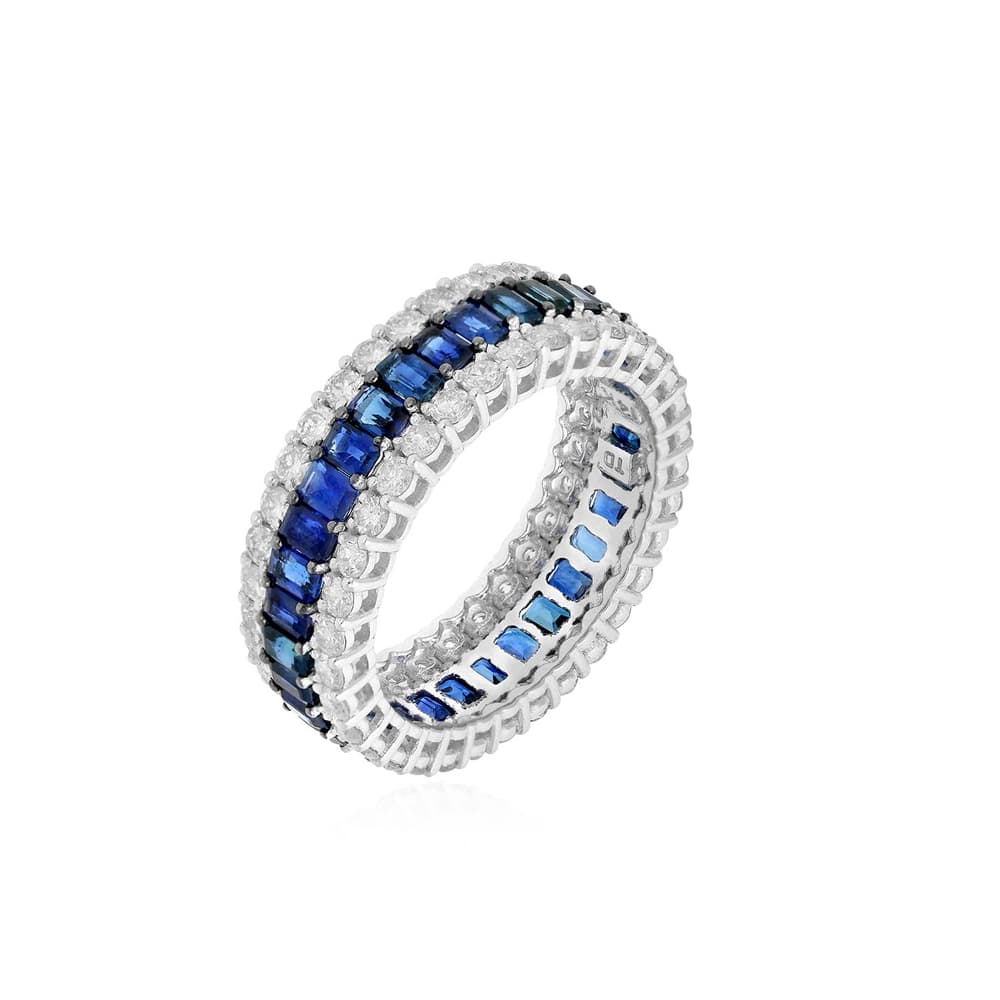
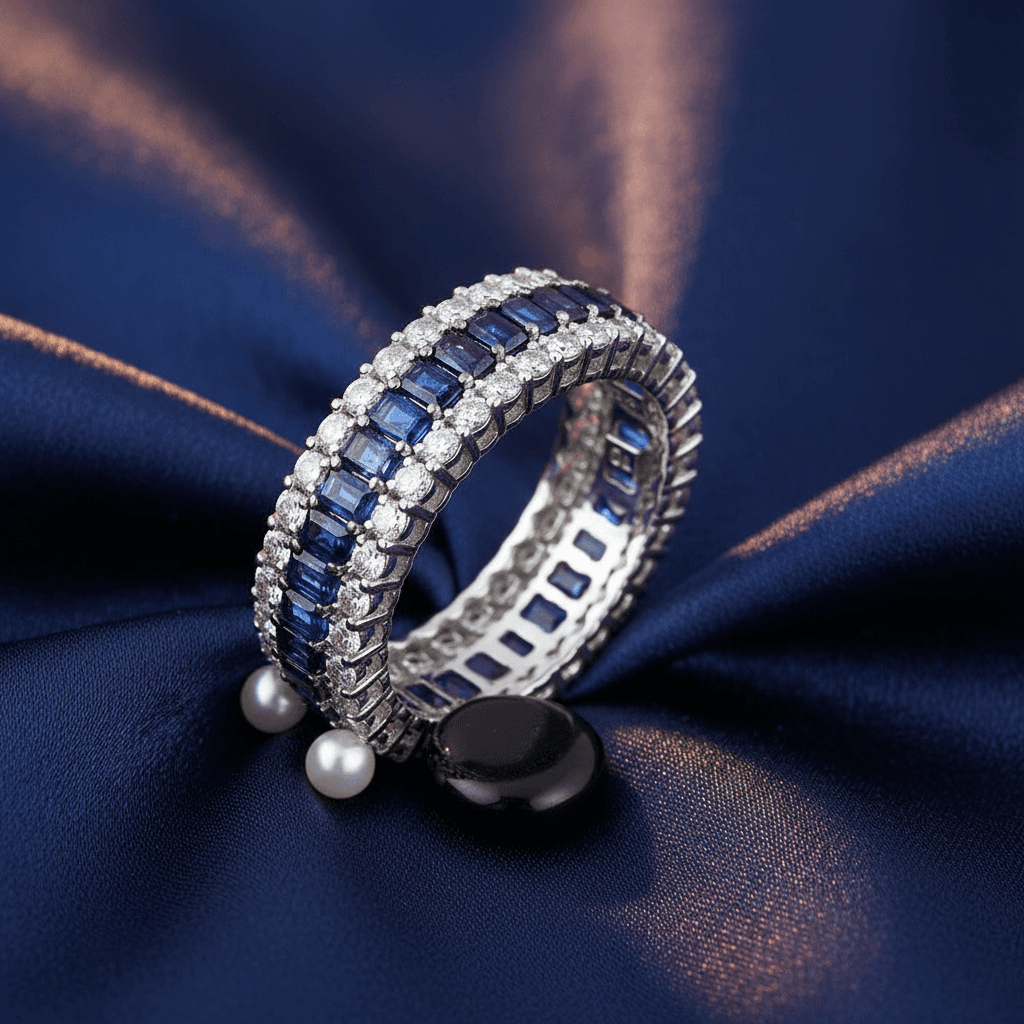
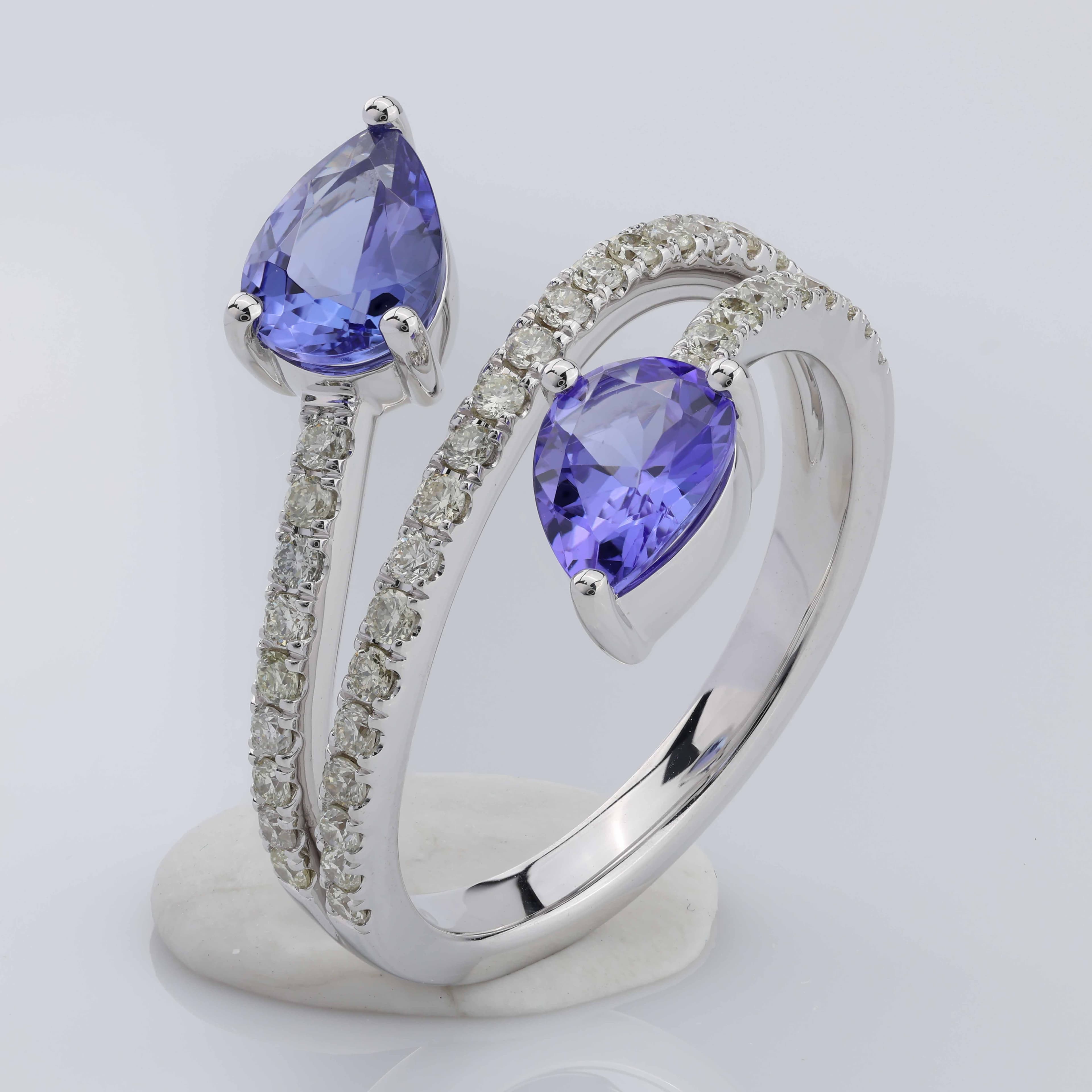
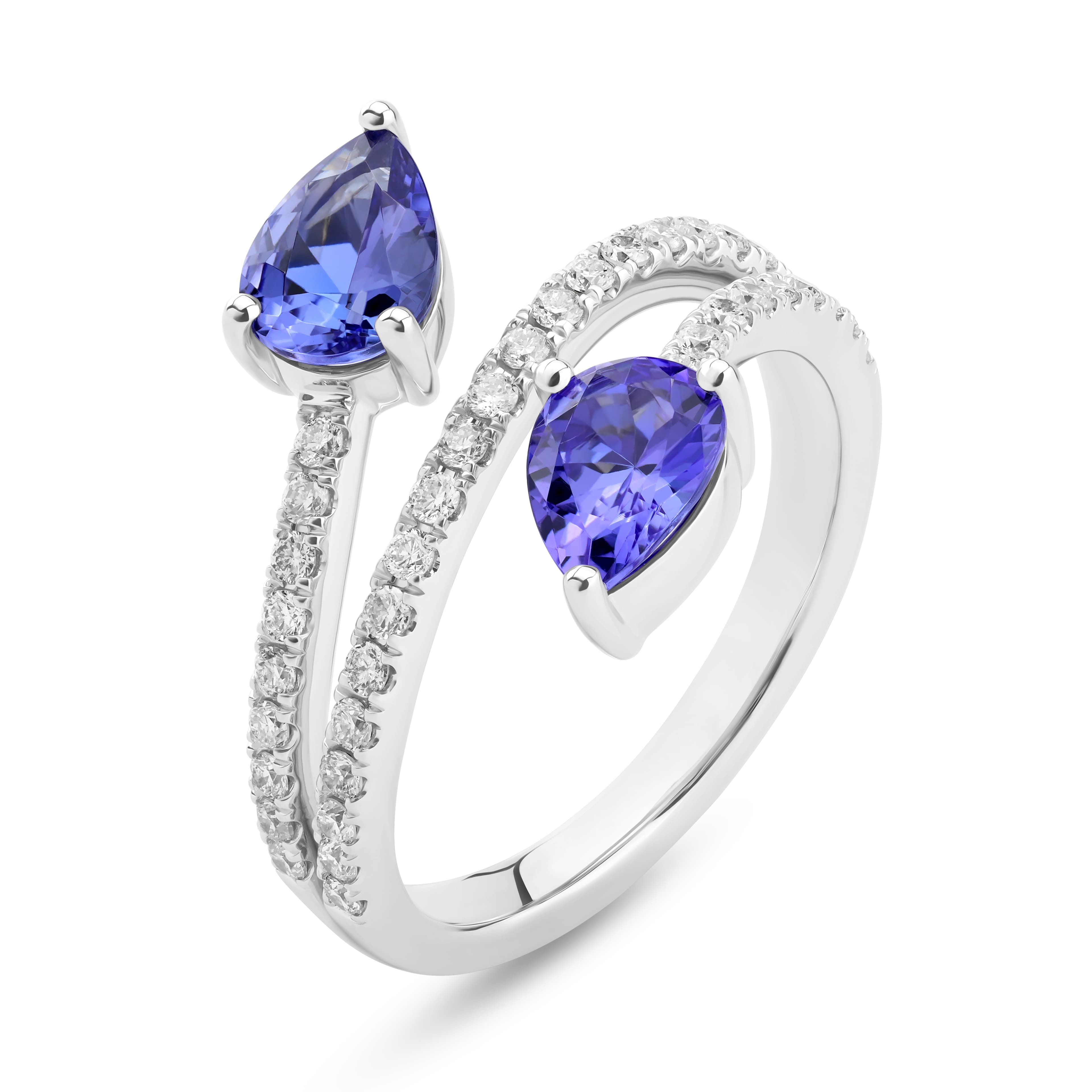
Blue gemstone and diamond band: background swap
A band set with blue gemstones and diamonds, with its background swapped. The original is on the left and the Hues AI version is on the right.
Blue gemstone ring: color correction
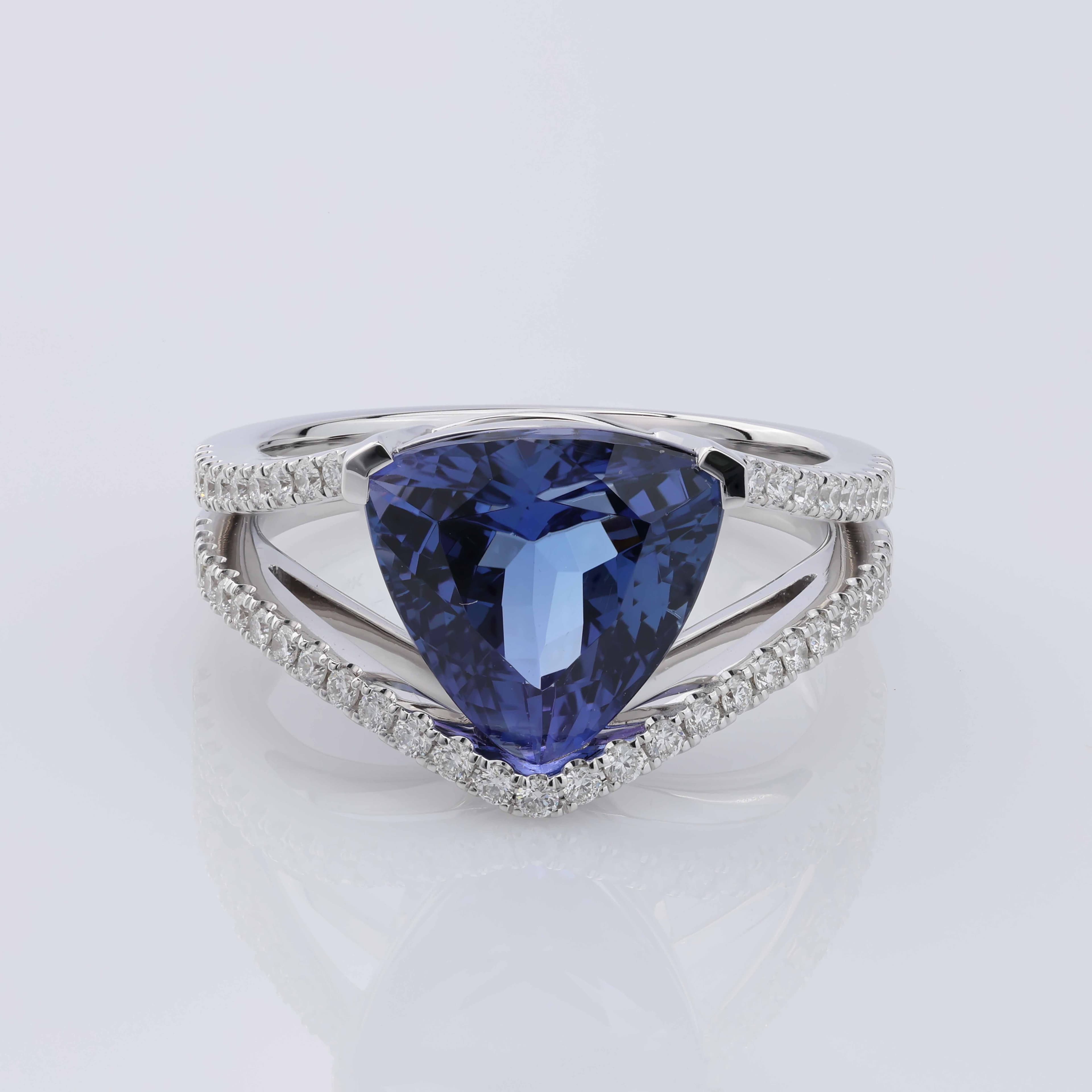
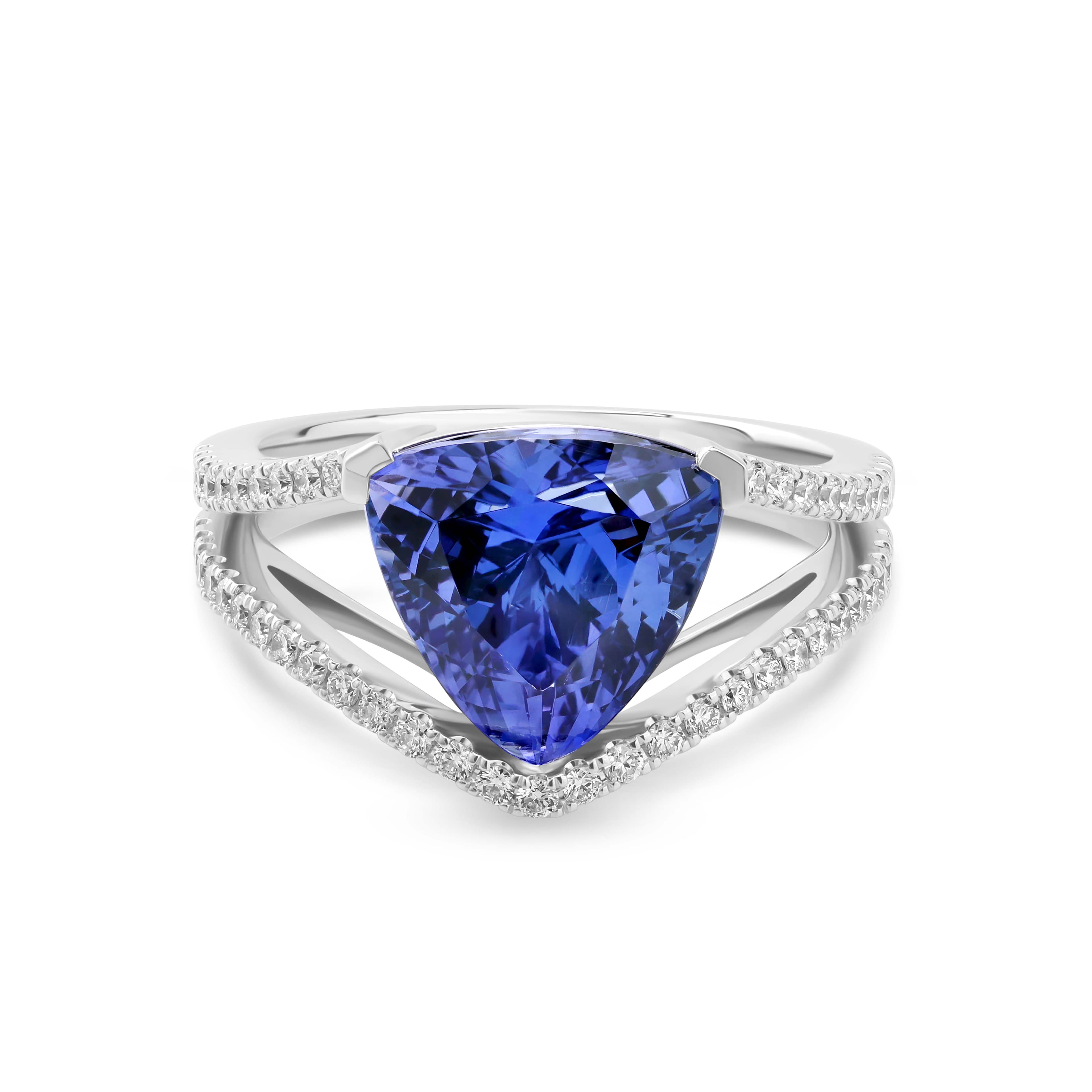
A ring with a blue center stone and diamond-set shoulders, before and after color correction. The original is on the left and the corrected version is on the right.
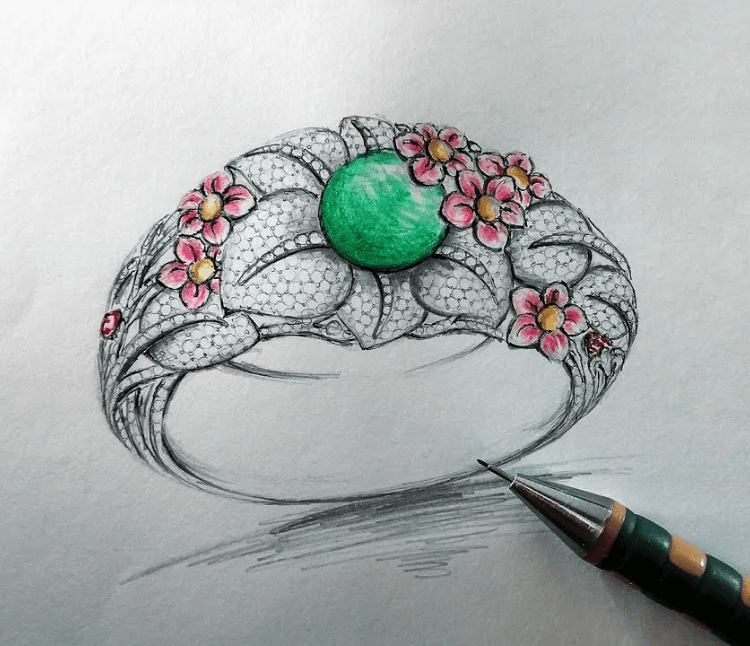
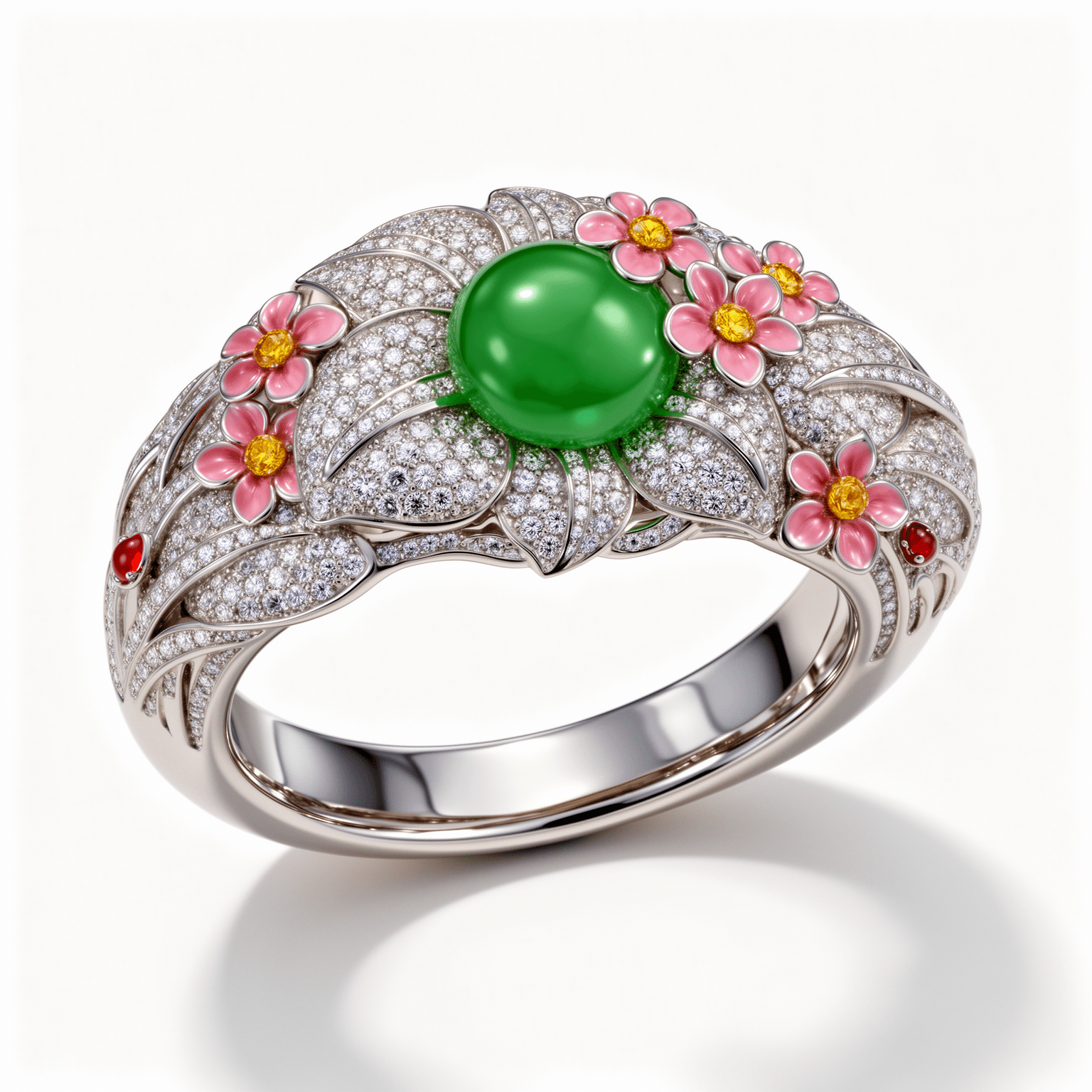
Jewelry sketch to render
A jewelry design sketch on the left and the rendered design on the right.
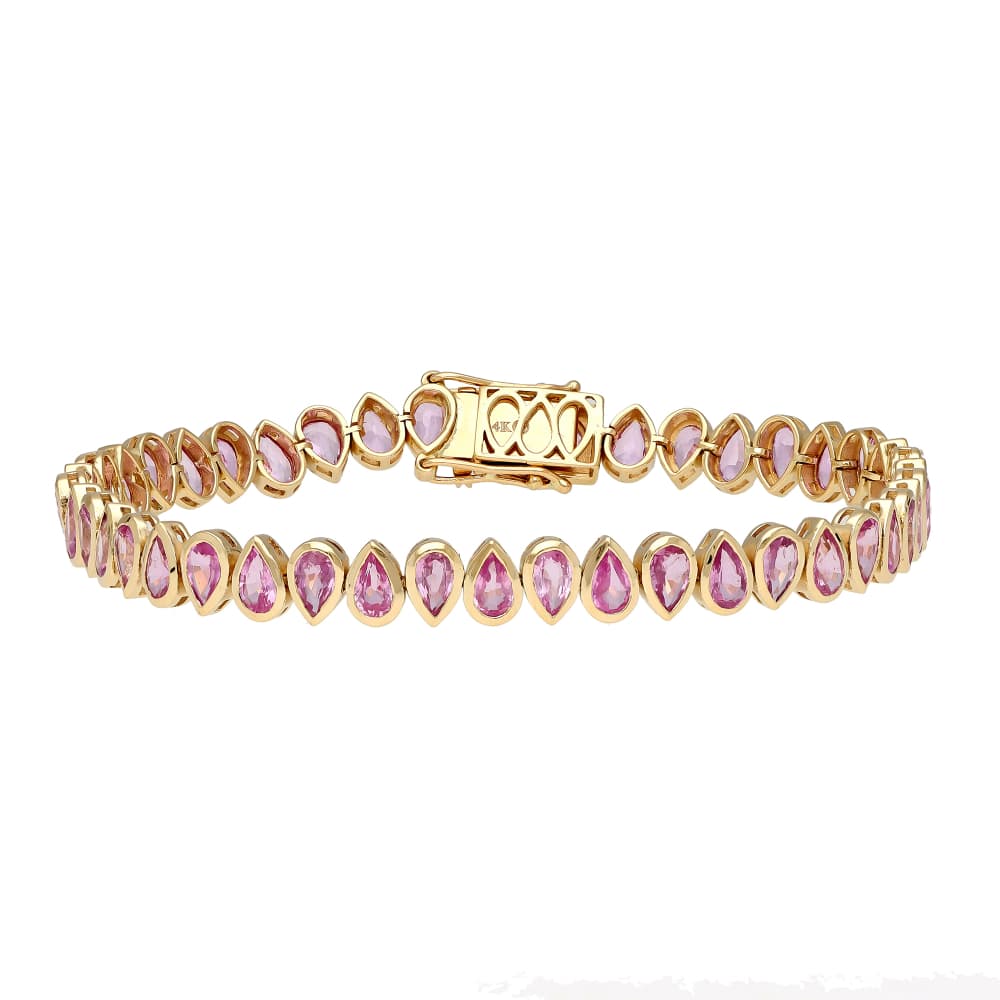
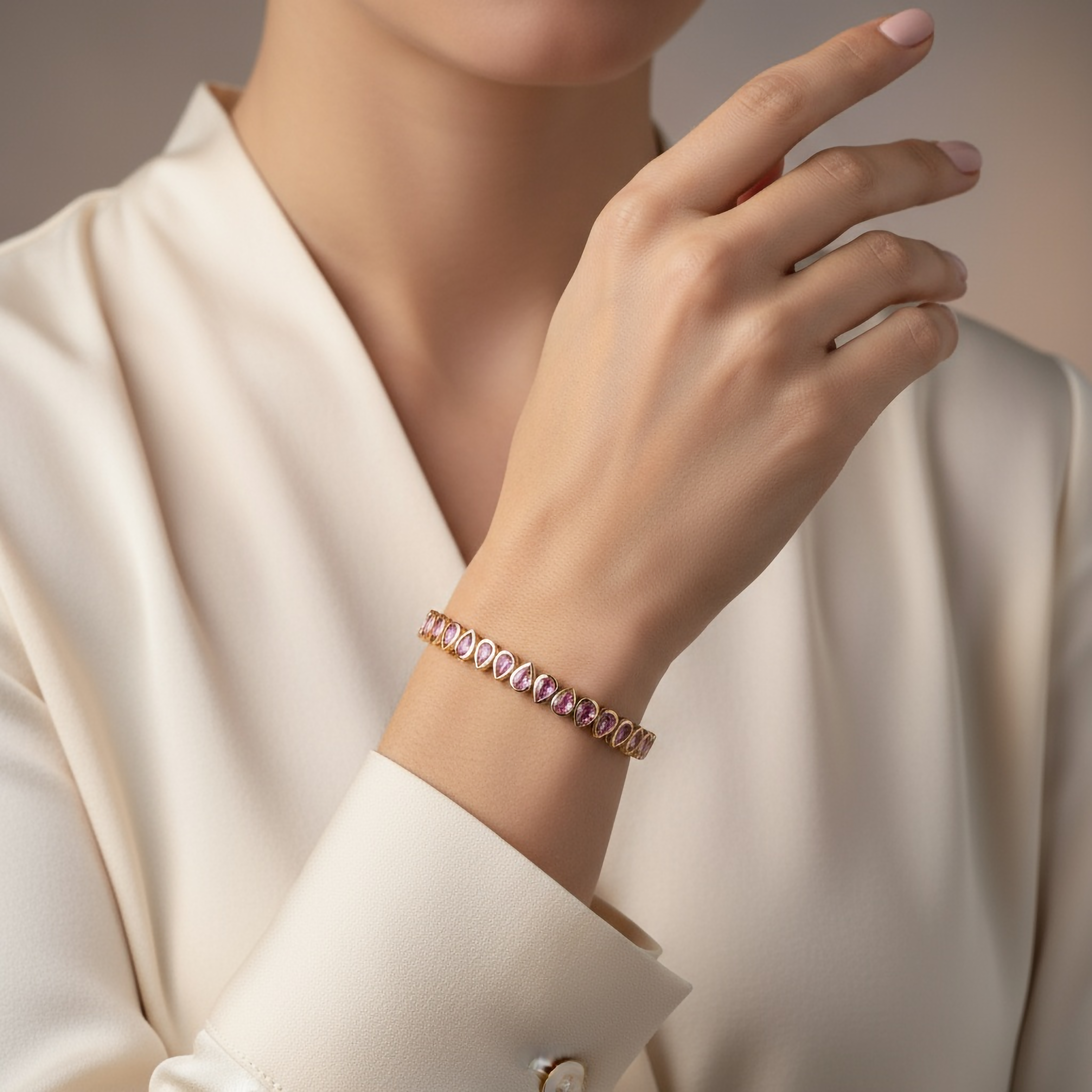
Gold bracelet: virtual try-on
A gold bracelet photo on the left and the virtual try-on image made from it on the right.
Jewelry photo: retouch
A jewelry photo before and after retouching. The original is on the left and the retouched version is on the right.
Jewelry video examples
Short clips from the homepage. Each one is about five seconds long and plays muted.
Creative Video
Motion Output
Try-On Video
Ring Animation
More product clips
Try it on your own pieces
New accounts get 80 free credits once the email address is verified, and no card is required. The studio shows the exact credit cost before each run. Credits are a one-time purchase, with no subscription. Browse all use cases to find the tool for the shot you need.
Start with 80 free credits
No card required. Turn your next product shot into catalog-ready imagery in under a minute.