
Design & CAD
AI jewelry design generator for the sketch you already drew
Turn a hand-drawn jewelry sketch into a photoreal render of the same design.
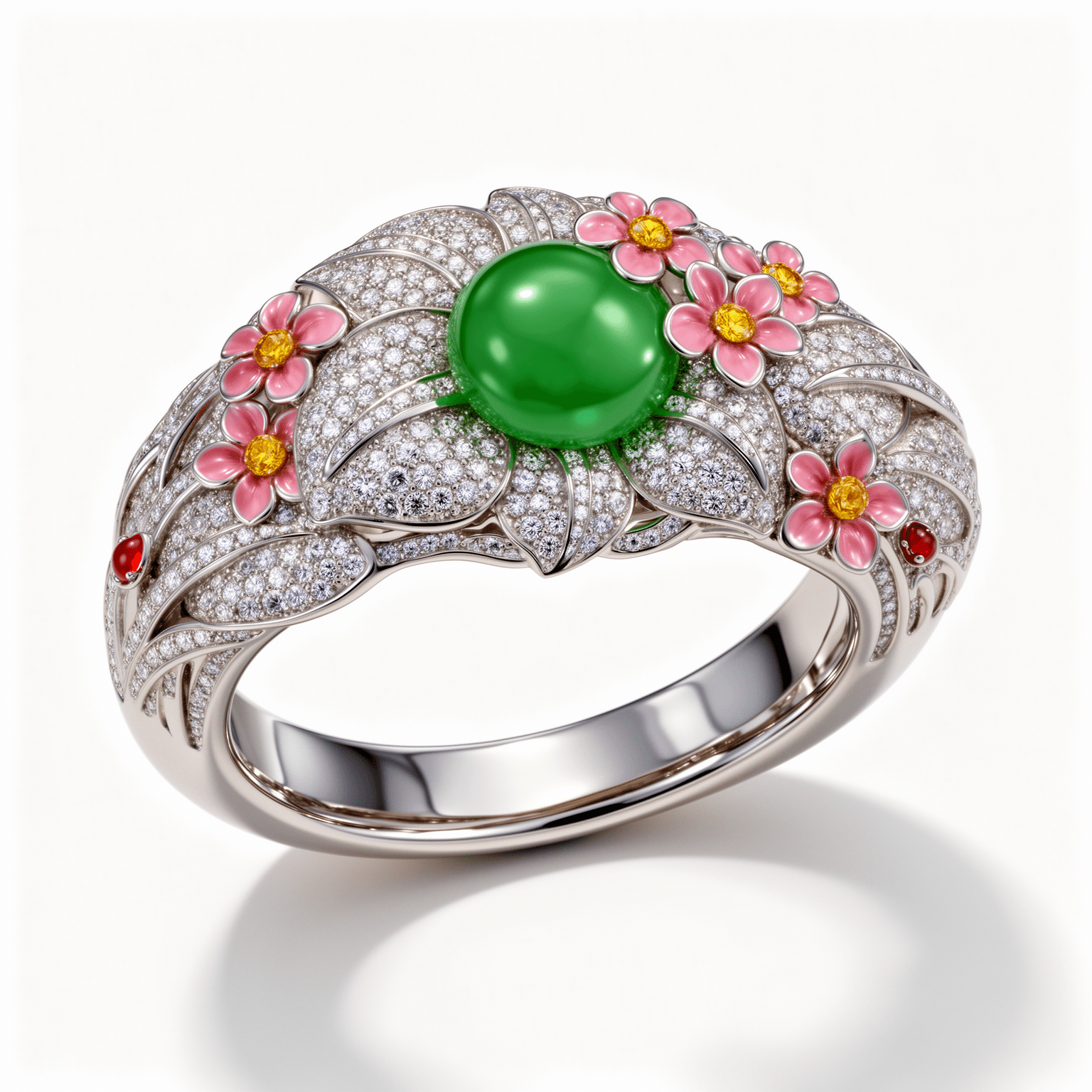
If you are searching for an AI jewelry design generator, Hues does one specific part of that job: it takes a design you have already drawn and renders it as a photoreal image. Upload your sketch and the result shows the same piece, with the same motifs, stones and setting, as if it had been made and photographed. It does not invent a new design from a text prompt. In the studio this tool is listed as Sketch to Render, and the exact credit cost is shown before each run.
Design generator or design renderer?
Two kinds of tool answer to the name AI jewelry design generator. One invents a new design from a text prompt. The other takes a design you already have and shows what it would look like made. Hues is the second kind.
That is a deliberate line. Hues treats your sketches and CAD files as the blueprint: it enhances the presentation, never the design. If you want fresh ideas from a written prompt, a general text-to-image tool such as Midjourney is built for that, but it will not reproduce your exact ring, setting or stone count. The two can sit side by side: a text-to-image tool for ideas, Hues for the design you settle on.
What the sketch-to-render example shows
The Sketch to Render example on the Hues homepage starts with a colored-pencil drawing of a ring, photographed on paper. It has pink flowers with yellow centers, a green cabochon in the middle and pavé across the top.
The render keeps all of it: the same flowers in the same places, the same green cabochon and the same pavé, now shown as polished metal and stones on a clean white background. The design is the one in the drawing. What changes is that it now looks made.
Check the render against your sketch
Hues runs on generative models, and generated images can contain inaccuracies or unintended variations. Compare the render with your drawing before you show it to a client or publish it.
- Count the stones against your drawing
- Check the setting and the number of prongs
- Compare proportions such as band width and the height of the center stone
- Confirm the metal and stone colors are the ones you intend
Already working in CAD?
This page is about the earliest stage, when a design exists only on paper. If the piece is already modeled, the CAD jewelry design visualizer page covers rendering from a CAD file.
Why jewelers use it
Your design, not a new one
The render follows your drawing. Hues keeps your sketch as the blueprint and changes how the piece is presented, not what the piece is.
Start from paper
The input is a sketch. In the Sketch to Render example on the Hues homepage, it is a photo of a colored-pencil drawing with the pencil still in the shot.
Something a client can judge
A photoreal render reads as a finished piece, which is easier to react to than a pencil drawing when you are discussing a design.
The cost up front
Every run shows its exact credit cost before it starts, and credits are a one-time purchase with no subscription.
How it works
- 1
Open Sketch to Render
In the studio, the tool is listed as Sketch to Render in the Designer section and alongside the other jewelry tools.
- 2
Upload your sketch
Add a photo or scan of the drawing you want to see rendered.
- 3
Check the cost and run
The studio shows the exact credit cost before you start, then returns a photoreal render of your design.
What you can feed it
- A hand-drawn jewelry sketch
- A photo or scan of a drawing on paper
- A colored-pencil sketch
- A line drawing of the piece
Frequently asked questions
No. Hues renders a design you have already drawn; it does not invent one. Your sketches and CAD files stay the blueprint, and Hues enhances the presentation, never the design. For new ideas from a text prompt, a general text-to-image tool such as Midjourney is the right kind of tool.
This tool starts from a drawing. It is listed as Sketch to Render, and its job is to turn your sketch into a render. If you only have a written idea, sketch it first, or use a text-to-image tool to explore ideas.
It is meant not to. The goal is a faithful render of your drawing, as in the homepage example where the flowers, the green cabochon and the pavé all carry over. Generated images can still contain inaccuracies, so compare the render with your sketch before you use it.
No. The output is an image. It helps you see and discuss the design, but making the piece still needs a CAD model or a bench jeweler.
You keep ownership of the sketch you upload. Under the Hues Terms of Service, and subject to them, you own the output generated for your account and can use it for personal and commercial purposes, including catalogs, advertising, social media and product listings. Only upload designs you have the rights to.
New accounts get 80 free credits once you verify your email address, with no card required. The studio shows the exact credit cost before each run, and credits are a one-time purchase — there is no subscription.
Related tools & reading
CAD jewelry design visualizer
Photoreal renders from a CAD file in about 30 seconds.
AI jewelry photography
Catalog-ready 4K photography rendered in about 30 seconds.
Jewelry product video
A rotating 4K product clip in one to two minutes.
Hues AI vs Midjourney for jewelry imaging
Midjourney invents jewelry from text but will not reproduce your exact ring, setting, or stone count. Hues AI renders yours from a photo, CAD, or sketch.
Start with 80 free credits
No card required. Turn your next product shot into catalog-ready imagery in under a minute.