
Editing
Change jewelry metal color with AI: write the edit you want
Describe the change to a jewelry photo in your own words, and pin exact shades with reference colors.
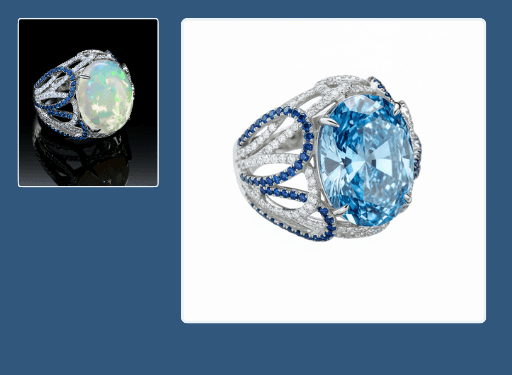
To change jewelry metal color with AI in Hues, you write the edit as an instruction. The tool is listed in the studio as Jewelry Modifier Pro. You upload a photo of the piece, type what to change in a required instruction field, and can add up to five reference colors for exact shades. It is a general jewelry editing tool driven by your instruction, not a dedicated metal-color switch. The studio's own example shows a center-stone change rather than a metal change, so check every result against the piece you sell. The exact credit cost is shown before each run.
An instruction-driven editor, not a metal-color switch
Jewelry Modifier Pro does not have a button for each metal. It works from what you write. A metal-color change is one instruction you can give it, in the same way you could ask for a different change to the piece.
The studio's own example is a stone change. It starts with a ring that has an opal center stone and blue pavé, and the result shows the same ring design with a large blue faceted center stone in place of the opal. Hues does not publish a metal-color example for this tool, so test a metal change on one photo before you plan a catalog around it.
How to write the instruction
The instruction is the whole brief, so say exactly which part should change and which parts should not. A short, specific instruction is easier to check than a long, vague one.
- Name the part to change, such as the band, the prongs or all of the metal
- Name the color you want, or point to a reference color as Color #1
- Say what must stay the same, such as the stones and the design
- Keep to one change per instruction so the result is easy to judge
One instruction per run
Each run works from one written instruction, plus any reference colors you add. If you want the same piece shown in several metals, plan on one run per version, each with its own instruction. The studio shows the credit cost of every run before it starts.
Check the result before you list it
Hues runs on generative models, and generated images can contain inaccuracies or unintended variations. That matters more than usual here, because a listing image has to match the piece a customer receives.
- Confirm the metal reads as the color you asked for
- Count the stones and compare their color with the original
- Check the setting, the prongs and any engraving or texture
- Only list a metal you actually sell for that piece
Why jewelers use it
Say what to change in your own words
The tool runs on a written instruction. You describe the edit, such as the metal color you want, in a required field that accepts several lines.
Exact shades by reference
Add up to five reference colors and point to them in your instruction as Color #1, Color #2 and so on, instead of trying to describe a shade in words.
Start from the photo you have
The input is a photo of the piece. In the studio's example, it is a product shot of a ring.
The cost up front
Every run shows its exact credit cost before it starts, and credits are a one-time purchase with no subscription.
How it works
- 1
Open Jewelry Modifier Pro
In the studio, the tool is listed as Jewelry Modifier Pro in the Designer section and alongside the other jewelry tools. Upload a photo of the piece.
- 2
Write the instruction
Type what to change, for example the metal color you want and what should stay the same. Add reference colors if you need an exact shade. The tool will not run with an empty instruction.
- 3
Check the cost and run
The studio shows the exact credit cost before you start. Compare the result with your original photo before you use it.
What you can feed it
- A photo of the piece
- A written instruction saying what to change
- Up to five reference colors (optional)
Frequently asked questions
No. Jewelry Modifier Pro is a jewelry editing tool driven by a written instruction. A metal-color change is one instruction you can write. The studio's own example shows a center-stone change rather than a metal change, so try it on one photo and check the result before you rely on it.
No. Each run works from one instruction, plus any reference colors you add. To show the same piece in several metals, run the tool once per version, each with its own instruction. The studio shows the credit cost before each run.
You can add up to five reference colors. Your instruction refers to them by position, as Color #1, Color #2 and so on, which is more precise than describing a shade in words.
The instruction field is labeled "Multi-language" in the studio, which suggests you can write it in a language other than English. Hues does not publish a list of supported languages, so check the result the same way you would for an English instruction.
Hues does not promise that. Say in your instruction what must stay the same, then compare the result with your original photo. Generated images can contain inaccuracies or unintended variations, so check the stones, the setting and any engraving before you use the image.
New accounts get 80 free credits once you verify your email address, with no card required. The studio shows the exact credit cost before each run, and credits are a one-time purchase — there is no subscription.
Related tools & reading
Jewelry photo retouching
Dust, glare, and fingerprints gone in about 30 seconds.
AI jewelry photography
Catalog-ready 4K photography rendered in about 30 seconds.
CAD jewelry design visualizer
Photoreal renders from a CAD file in about 30 seconds.
AI jewelry photography tools compared
Hues AI against Photoroom, Pebblely, Midjourney and a studio shoot.
Start with 80 free credits
No card required. Turn your next product shot into catalog-ready imagery in under a minute.